
Quiz
Page actions
 Open in ChatGPT
 Open in Claude
Couldn’t copy. Open the Markdown to copy it manually.
Fix a quiz that does not show on your store
Fix a missing quiz, a wrong quiz, or a widget that only appears on some storefront pages.
If your quiz is missing or the wrong one appears, start with the placement in Brandye, then check the page in your theme.
- Open the quiz’s Placement section.
- Check that the intended placement has Placement enabled on.
- Click Save changes if you changed it.
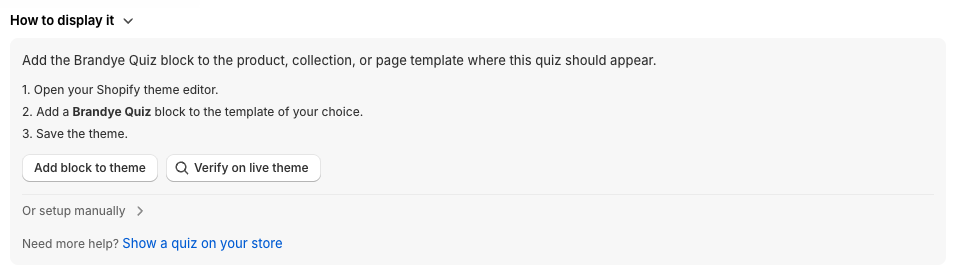
- Open How to display it.
- Click Verify on live theme to check the live theme configuration.
- Open the intended storefront page to check whether the quiz appears.
Check the placement type
- Floating widget quiz. Check that the Brandye app embed is on for the theme you’re viewing. Check that Where the quiz button shows in that placement includes that page. If Brandye shows an overlap warning, adjust the widgets so they don’t target the same page.
- Embedded quiz or Full-page quiz. Check that the theme template has a Quiz block with the correct Display mode and Placement handle. If Questionnaire handle is filled in, it must also match the quiz. If an embedded quiz is missing on a collection page, check Advanced settings → Trigger on.
Verify on live theme checks the live theme’s configuration. It doesn’t test whether the quiz renders on a specific page. It can miss quizzes added through custom Liquid.
What to send support
Send support the storefront URL, the placement handle, and the result of Verify on live theme.