
Quiz
Page actions
 Open in ChatGPT
 Open in Claude
Couldn’t copy. Open the Markdown to copy it manually.
Add and edit quiz questions
Write quiz questions, add answers and images, and change their order.
Open Questions in the quiz editor to add a question, edit its answers, or move it.
Add a question
- Open your quiz in Quizzes.
- Open Questions.
- Click Add question. If the quiz is empty, click Add Question.
- Choose a question type.
- Enter the question text.
- Enter the first answer for a choice question.
- Click Add option for each additional answer.
- Click Save changes.
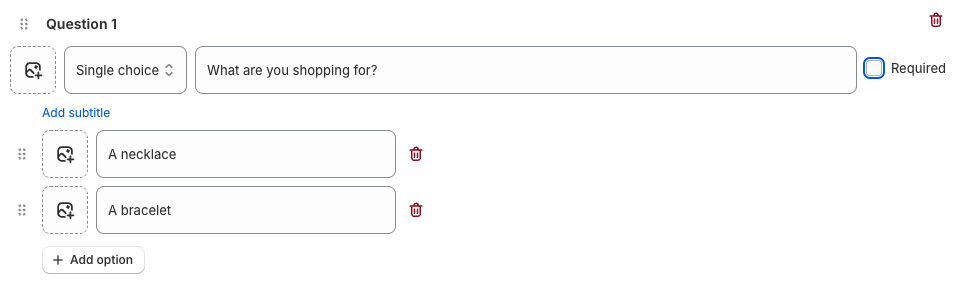
Use the image button beside a question or answer to upload an image. Click Add subtitle if shoppers need context before answering. Turn on Required if they need to answer before moving on.
Reorder or remove a question
Drag the handle next to a question or answer to move it. The quiz follows this order unless conditional logic sends shoppers along another path.
To remove a question or answer, click its trash icon. If a confirmation shows linked rules, review them before confirming. Click Save changes to keep your edits.
Common troubleshooting
An answer won’t save
Fill in every option or remove the blank ones.
An image won’t upload
Use an image file that’s 10 MiB or smaller.