
Quiz
Page actions
 Open in ChatGPT
 Open in Claude
Couldn’t copy. Open the Markdown to copy it manually.
Change your quiz's style
Change a quiz placement’s colors, buttons, or layout and preview the result.
Open the placement editor to change how one version of your quiz looks on the store.
- Open your quiz’s Placement section.
- Click Open editor on the placement you want to change.
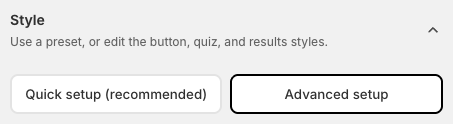
- Under Style, choose how to edit.
- Quick setup (recommended). Pick this when you want to start from a preset. Preview the preset, then click Apply preset to use it.
- Advanced setup. Pick this when you want to change individual controls, such as the question text, progress bar, or answer layout.
- Check the result in the preview. Use the mobile and desktop controls to check both sizes.
- Save the placement changes.
For a floating widget, check its button settings as well as the quiz styles. A placement can have separate button settings for mobile and desktop.
If the preview looks right but the store still shows the old style, check that the theme uses the placement you edited. To change product cards, open the results page for that placement.