
AI Shopping Assistant
Page actions
 Open in ChatGPT
 Open in Claude
Couldn’t copy. Open the Markdown to copy it manually.
Choose where the chat bar appears
Show the AI Shopping Assistant on selected storefront pages and devices.
Choose which types of pages show the AI Shopping Assistant, then hide it on individual URLs if needed. These settings control the floating chat bar. To show a button instead, choose how the chat opens. The Product Questions block is placed separately in your theme.
Choose pages and devices
- Open AI Product Questions in Brandye.
- Under Setup, open AI Shopping Assistant.
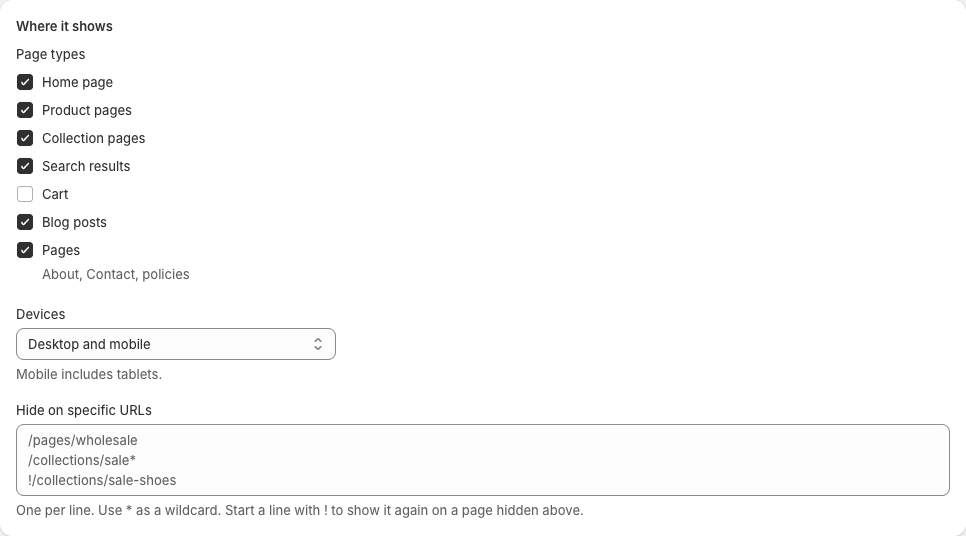
- Under Where it shows, select the Page types that should show the bar.
- Choose an option under Devices.
- Click Save.
The starting settings show the chat bar on desktop and mobile. Mobile only includes tablets. Product pages and Cart start off. Select Product pages if you want the bar there, as shown below. When a shopper moves to another product during a chat, the chat offers up to two of that product’s questions.
Hide the bar on specific pages
Under Hide on specific URLs, enter one path or pattern per line. Use the part of the URL after your store’s domain.
| Example | What it does |
|---|---|
/pages/wholesale |
Hides the bar on the wholesale page. |
/collections/sale* |
Hides the bar on collection paths that start with /collections/sale. |
!/collections/sale-shoes |
Shows the bar on that collection again when placed below the previous rule. |
The last matching line wins. An exception can show the bar again only if the page type and device are already selected. Click Save, then preview one page that should show the bar and one that should hide it.
Common troubleshooting
The bar doesn’t appear on any page
Check that the assistant and its theme embed are on. Check the theme you are previewing. If the settings are correct, open AI Product Questions and look for Your assistant is hidden from shoppers. Brandye hides the bar when your store runs out of AI chats.
The bar appears on desktop but not on my phone
Check Devices and make sure you are testing the same page on both devices.